

The digital era has enabled everyone to adopt a digitised learning experience. Simple process changes like converting Word to PDF open doors for collaborative study and increased engagement among businesses. Word documents have been a traditional way of sharing learning materials, yet PDF has now been receiving more preference in all education and business settings due to their cross-platform compatibility. It fosters a dynamic digital web experience.
PDF documents incorporate multiple varieties of media content such as links, audio files, videos, images, fillable forms etc. Making a rich media document is important for companies in today’s world. Interactive media improves its engagements by 52.6% as shown by stats.
Why Create An Interactive PDF For Engaging Learning Materials?
Makes the PDF interactive - Interactive PDF makes the content more engaging and widely accepted by the users. As PDFs are more accessible to a wider audience and easy to share, turning a Word into a PDF document would ensure more interaction. Incorporating interactive media like videos, links, and GIF animations would draw more readers in and engage them to explore the content further.
Eases Branding and Personalisation - Creating a Word to PDF would ensure easier branding and designing since consistency is key in branding; it provides more opportunities by marking the content as one’s own with logos, colours and other elements. This ensures the personalisation of PDFs by brands and also lets the users individualise them.
Enhances note taking - The ability to leave comments, draw diagrams, add texts, and images or change fonts can help the students in engaging more freely with the material when working with textbooks in PDF format. A PDF document is also easier to navigate than a Word document which is an added bonus.
Increases Shareability - Interactive PDFs are also easier to share with the users as they have the ability to be converted into HTML documents and are available as document links to the readers rather than email attachments or file transfers.
How To Create An Interactive PDF In Adobe Acrobat

Create an Interactive PDF in Adobe Acrobat
All tasks have shifted online, from students reading textbooks to companies reviewing documents. Engaging readers with the content has become more important than ever to encourage interaction. Using interactive PDFs can help readers as well as businesses with promotional and practical documents since they are dynamic and user-friendly.
Interactive PDFs can be used for both gathering and sharing information which makes it versatile. They can also be created from existing documents and content, here’s how:
In an existing file: Open the existing PDF to edit it and add interactive features, like comments, annotations, and highlights, to the content
In a new file: Open a new PDF file and add interactive elements to the content.
Converting documents to PDF: Converting Word to PDF is easy. Open the Word document, and save the file as a PDF. It can also be done on Adobe Acrobat by opening the document within the app and converting it into PDF files.
How to create an Interactive PDF in Adobe Acrobat:
Open the PDF or create a New PDF
To add buttons/ links:
Click on the edit PDF option
Select the link option
Add/edit web link and document link from the menu button
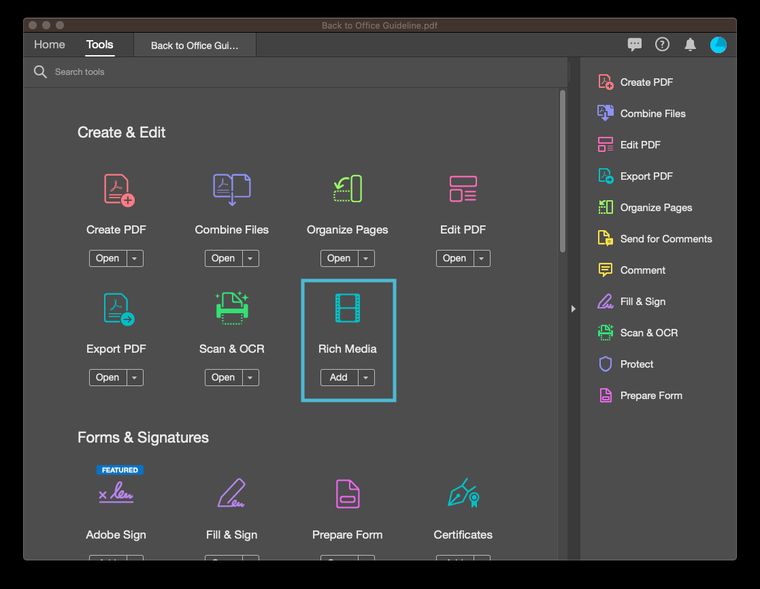
To add a video:
Click on the Tools option
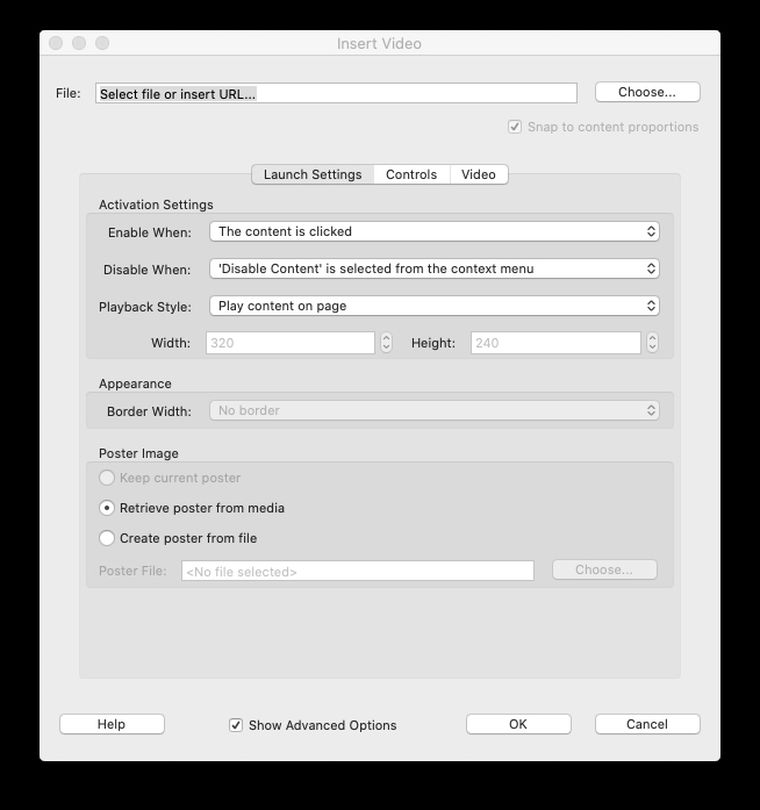
Select rich media and add the required video

To add tick boxes or other form fields like signatures:
Select Tools option
Click on the prepare forms and add a tickbox or other form fields
Preview the elements in the final version under tools print production > output preview
Export the interactive PDF file: Under the files export option, choose the format as PDF and save the files
- Create Interactive PDFs for Enhanced Learning
- Creating a Word to PDF file gives many perks to the readers as PDFs are trackable documents that are easily available online with the ability to personalise and brand the document. Such documents help students better by engaging them with the material at hand.